
4 Easy Ways to Remove Background Music Online
Martina Lee | Updated on 2026-08-14
Background music can add atmosphere, but it becomes an issue when you need clear voice audio. Maybe your podcast, interview, or voice memo picked up music in the background. On playback, the instrumental dominates and the voice is harder to hear.
If you are looking for a quick way to remove background music from videos, the simplest approach is to extract the audio first and clean it. Coolo AI Background Music Remover can help you remove background music from audio files in just a few clicks.
Below is the complete guide that helps you remove background music from video & audio online for free.
Contents
Part 1. Why Remove Background Music from Your Video
Removing background music can be useful in various situations, such as:
Avoiding Copyright Issues
Many background tracks are protected by copyright, and using them without permission can result in video removals or loss of monetization.
Improve Overall Audio Quality
Background music can compete with dialogue or natural sound, making the overall audio harder to follow.
Enhance Speech Clarity
For educational content, interviews, and documentaries, clear and focused speech is often more important than having music in the background.
Part 2. 4 Online Tools for Removing Background Music
Coolo AI Background Music Remover
Coolo AI Vocal Remover is an incredibly intuitive tool that lets you effortlessly strip background music from any video. It provides the perfect, no-fuss solution for everyone, from complete beginners lacking complex editing skills to seasoned professionals. Plus, its broad format compatibility handles popular formats like MP3, WAV, and FLAC.

Coolo AI Background Music Remover
100% vocal and instrumental isolation
How to remove background music from audio with Coolo online vocal remover?
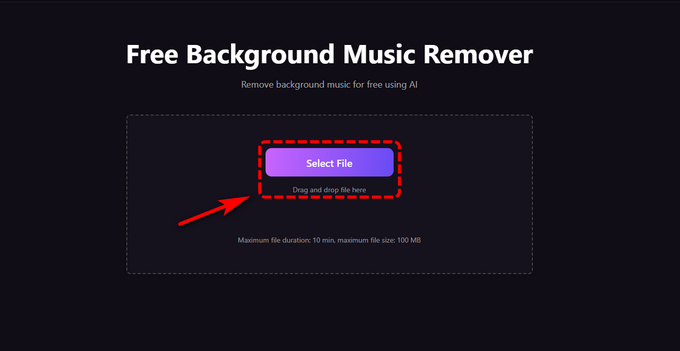
- Open Coolo AI Vocal Remover in your browser, then hit the Select File button or drag and drop files to upload your audio file.
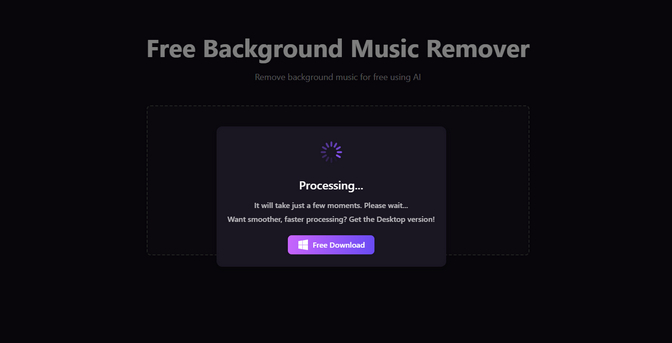
- Give it a moment as the AI automatically separates and removes the background music for you.
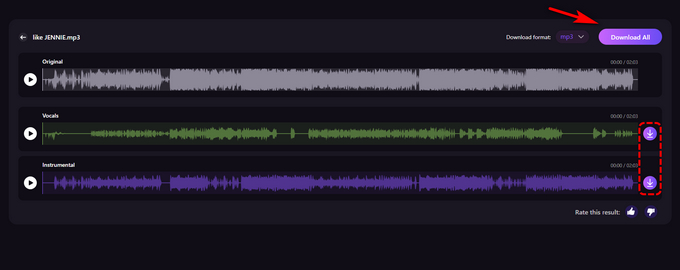
- Once the process is complete, click Download All to save the isolated vocals and background music as separate files.
Use Media.io to Remove Background Music
Media.io is an easy-to-use online platform that leverages AI to remove background music from videos and audio files while keeping the quality intact. It supports a variety of formats, including MKV, MP4, MP3, M4A, and OGG.
How to remove background music from videos using Media.io:
- Open Media.io in your web browser, then click Upload or drag your video into the upload area.
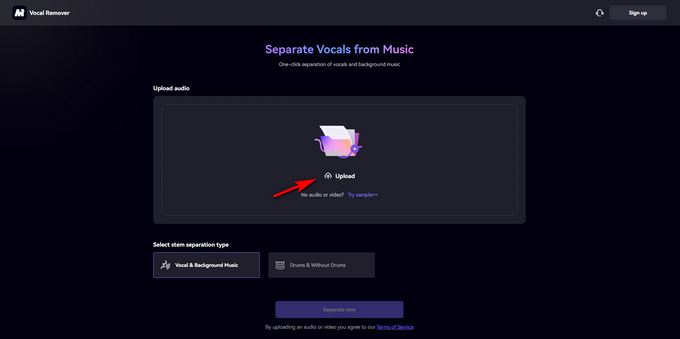
- Choose the stem separation type (Vocal & Background Music) and click Separate Now.
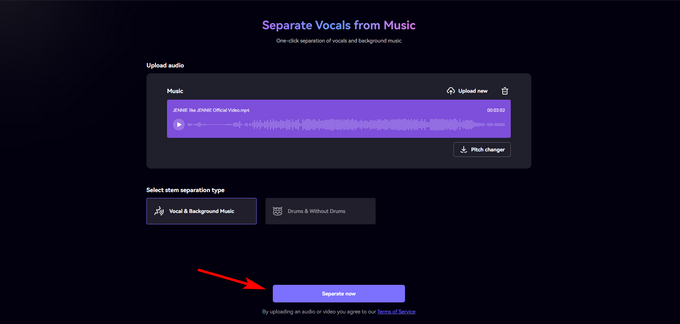
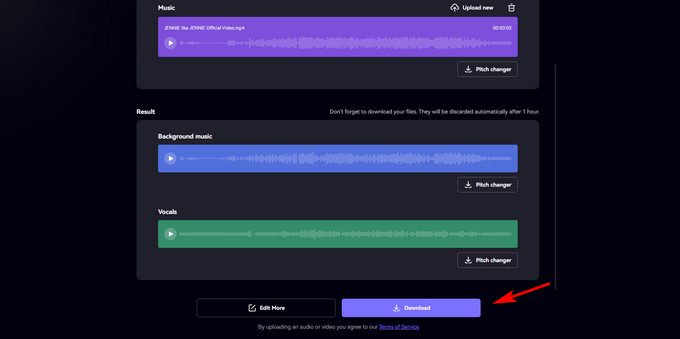
- Download the background music or vocals individually, or choose to download all files at once.
Use LALAL.AI to Remove Background Music
LALAL.AI is an AI audio separation tool designed to split vocals and instrumentals with high accuracy. While it’s primarily built for audio files, you can extract the audio from your video and process it with LALAL.AI. Its advanced algorithms will analyze the sound and separate the vocal and background music layers, making it a useful option when you need to remove background music.
Now you can follow these steps to remove background music:
- Open the LALAL.AI website in your browser, click Select Files, and choose the video file you want to process.

- Choose the stem separation option you want and click Split in Full. The AI will process your audio in seconds.
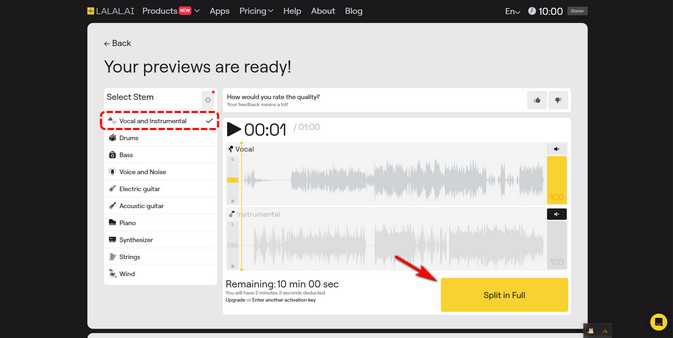
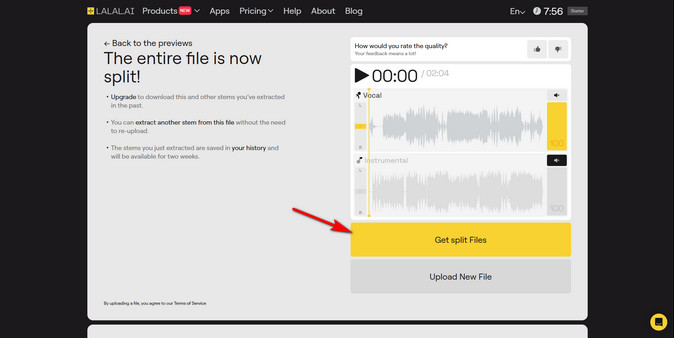
- When it’s done, download the output files to get your instrumental track.
Remove Background Music Using VocalRemover.org
Vocalremover.org is an online tool that lets you remove background music from audio and video, making it useful when you need to remove background tracks quickly. It’s simple to use, works with common formats like MP3 and WAV, and offers a free way to isolate clean audio for editing, voice-over work, or other projects.
These steps allow you to remove background music AI:
- Visit VocalRemover.org and click Browse my files to upload your video.
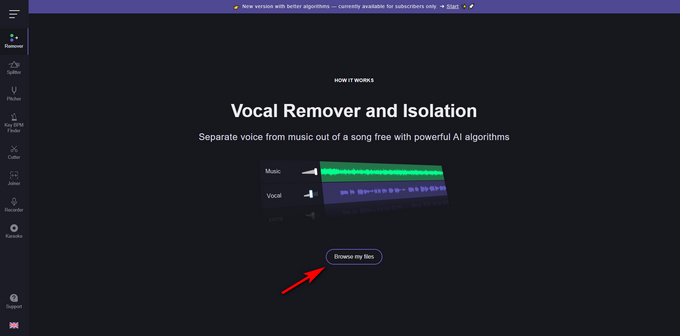
- The tool will generate two tracks: Music and Vocal. Drag the music slider to mute the background music.
- Click Save to download the cleaned audio in MP3 or WAV format.
Conclusion
In this article, we covered four reliable online tools that let you remove background music from videos for free. They are user-friendly, efficient, and make it easy to produce clean, professional-sounding videos without any complex editing.
If you’re not sure which tool to start with, we recommend Coolo AI Background Music Remover. It offers fast and accurate separation, supports multiple formats, and delivers high-quality results, making it a reliable choice for both beginners and advanced users.
Coolo AI Background Music Remover
100% vocal and instrumental isolation
FAQs
1. How to remove background music from audio?
Step 1. Go to the online background music remover, click the Select File to upload your audio.
Step 2. Wait a few seconds while the tool automatically separates the vocals and background music.
Step 3. When the processing is complete, click Download All to save both the vocal track and the background audio track.
2. What is the best app to remove background noise for free?
The Coolo AI Vocal Remover app is one of the best free tools for removing background noise. It’s fast, easy to use, supports popular formats, and uses AI to deliver clear, polished audio.
3. Can I separate background audio from voice?
Yes, Coolo Al vocal isolator can automatically strip out the background audio and let you download clean, full vocals.